Action Section
Action Center
The Action Center provides in session instructions for the end user. As a box is being process the Action Center provides instructions to the operator on how to proceed with the capture of a box. The following messages are displayed, the action(s) for each message are as follows:
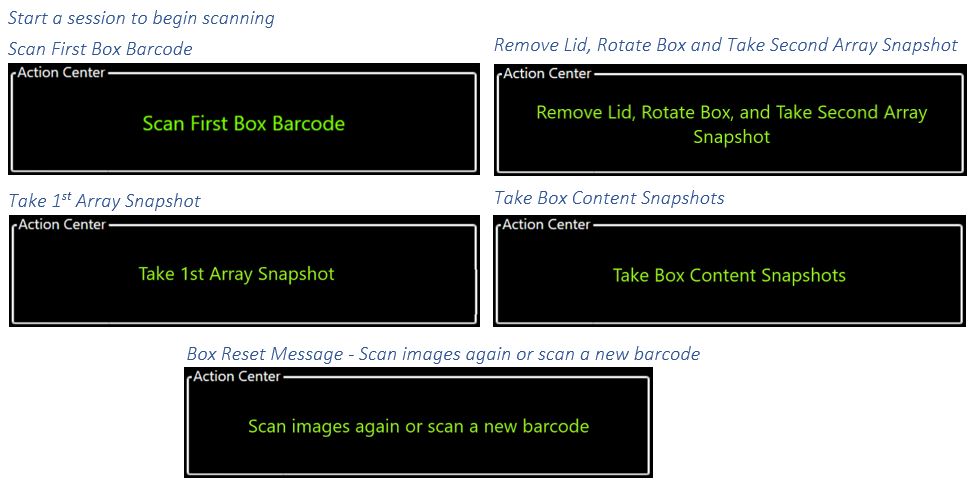
Action Center Messages in Order of Operation
Related Articles
Section 1.3 Operational Buttons
Operational Buttons allow the user to start and stop a session, focus the camera(s), switch between the standard and stadium document cameras, and perform the various image captures of a box during a session. Note: A Stream Deck controller can be ...Current Box Section of Message Center
Current Box The Current Box Message center contains information pertaining to the current box being captured. The message center includes the Barcode, Current Action (Status), the number of images captured and the Total Time in the current box. ...Message Center
Message Center The Message Center contains all the status information for the capture program, upload program, session, box history, current box, and the action center. Each section of the Message Center is explained below. Action Center The Action ...Section 1.1.1.6 Tablet PC Settings
If the monitors are switched, unplugged, or WIB™ Capture is closed prematurely, the touchscreen monitors may require calibration. Any user can perform this procedure using the mini-keyboard included with the WIB™ Unit. Calibrate the Touchscreen ...System Status Section of Message Center
System Status The System Status portion of the Message Center shows the Upload Service Status, the amount of Content to Upload, the Archive Space on the Unit Computer and the amount of Free Space on the Unit Computer. Please refer to the Upload ...