Section 10.2.3 Artificial Intelligence: Image Quality Analysis, Data Extraction, Redaction, and Form Identification
10.2.3 Artificial Intelligence
Section 10.2.3.1 AI Vision: Image
Quality Analysis Overview
AI Vision delivers automated image analysis at scale. It
detects imperfections and ensures every image meets your enterprise quality
benchmarks. Image Quality Analysis falls into two (2) categories: Document Content
Issues (Original Record Physical Characteristics) and Scan Issues.
AI
Vision: Image Quality Analysis
Section 10.2.3.1.1 Document Content Issues
Content issues refer to defects or deficiencies in a product's appearance or performance, ranging from blurry images and overexposure to data inconsistencies such as missing values, duplicates, or incorrect formats.Section 10.2.3.1.1.1 Document (Content) Quality Summary (DQS)
A generalized summary of the document analysis.
Section 10.2.3.1.1.2 DQS DetailThe detail provides a detailed analysis of each element impacting the image, with Recommendations for improving the document quality in the image.Section 10.2.3.1.2 Scan IssuesThe physical state of a document affects how clearly an image can be scanned, which is the foundation of the capture process. Capture quality problems can arise from human error, technical limitations, improper procedures, or a lack of validation during the capture or production process. Examples include, but are not limited to, the following list:
- Creases, folds, and wrinkles: These can distort text, cause shadows, and make characters unreadable to capture software.
- Stains and smudges: Ink smudges or stains can obscure text, causing the software to misinterpret or fail to capture the data.
- Faded ink or text: Faint or faded text, common on older documents, is difficult for OCR to detect accurately. Ink color that is a similar hue to the background, i.e., blue ink on a blue folder.
- Obscuring overlay: Highlights, strike-through text, labels where the information runs off the label, labels that cover text in the background, and high gloss tape.
- Torn or damaged edges: Missing sections of a document can lead to incomplete data capture.
- Non-standard paper: Documents on colored, textured, or low-quality paper can interfere with scanning and recognition
Section 10.2.3.1.2.1 Scan Quality Summary (SQS)
A Generalized summary of the scan analysis.Section 10.2.3.1.2.2 SQS Detail
The detail provides a detailed analysis of each element impacting the OCR and/or overall scan quality, with Recommendations for improving the capture quality.
Section
10.2.3.2 Configure AI Vision: Image Quality Analysis
Go to Configuration Management -> Automation ->
Quality Issues to access the AI Image Quality Analysis Configuration Page.
Section 10.2.3.2.1 Preconfigured AI Image Quality Analysis Prompts
Preconfigured AI image quality analysis prompts are standardized sets of instructions used by AI systems to evaluate and grade the visual quality of an image based on specific, predefined criteria. The prompts focus on analytical factors, such as sharpness, noise, and composition. These are the most commonly seen Quality Issues, but do not account for unique scenarios that may impact Quality, for example, Water-Damaged records.
Section 10.2.3.2.2 Configure Custom AI Image Quality Analysis PromptThis section outlines the process for creating and configuring a custom AI prompt that defines how the system evaluates and scores image quality using AI-driven analysis. The configuration allows administrators or advanced users to tailor the AI model’s behavior to specific project requirements, image standards, or aesthetic preferences. Once configured, the custom prompt is stored in the system and can be applied automatically to incoming images or invoked manually during image review. Adjustments to the prompt can be made at any time to refine analysis accuracy or align with updated quality standards.Quality Issue Prompt Example:
Section 10.2.3.2.2.1 Name
- Description: A concise, descriptive title that identifies the specific analysis objective of the prompt.
- Purpose: Used to quickly reference or select the prompt in the configuration interface or reporting system.
- Example: “Detect Blurry Images” or “Evaluate Product Centering in Frame”
Section 10.2.3.2.2.2 Category
- Content Issue: Image Quality was impacted by the original record.
- Scan Issue: Image Quality impacted by the WIB™ Unit operator.
Section 10.2.3.2.2.3 Definition
- Description: A detailed explanation of what the AI should evaluate and the criteria it should use to determine quality.
- Purpose: Provides the AI model with specific instructions and expected evaluation behavior, including thresholds, metrics, and descriptive cues.
- Example: “Identify images that exhibit poor sharpness or motion blur, preventing object details from being clearly visible.”
Section 10.2.3.2.2.4 Region of Interest
- Description: Specifies the portion of the image that the AI should analyze, often defined by coordinates, bounding boxes, or relative regions (e.g., center, top-left, full image).
- Purpose: Limits analysis to the most relevant area, improving efficiency and accuracy by excluding irrelevant background or context.
- Example: “Center 50% of image width and height” or “Bounding box surrounding primary subject”
Section 10.2.3.2.2.5 Report If (Positive Examples)
- Description: Conditions or visual
characteristics that indicate the issue or feature the AI should flag or
report.
- Purpose: Provides examples or reference
criteria that help the AI understand what constitutes a positive detection
(i.e., an image that meets the condition of interest).
- Example: “Report if the image appears out
of focus, blurred edges are visible, or motion streaks are present.”
Section 10.2.3.2.2.6 Don’t Report If (Negative Example)
- Description: Conditions or visual cues
that may superficially resemble the positive examples but should not be
flagged.
- Purpose: Helps the AI distinguish true positives from false positives by learning what not to report.
- Example: “Don’t report if the image background is intentionally soft or shallow depth-of-field is used around a sharp subject.”
Section 10.2.3.1.4 Test AI Quality Prompt(s)
The WIB™ Photo Pipeline will only run AI on newly ingested boxes. However, an authorized operator can manually run the AI Image Quality Analysis in Review. An administrator can test the AI Image Quality prompts in Configuration Management when configuring or editing a prompt.There are two (2) methods for testing image quality rules: Single Image and Testing Sample. To test the rule, first go to the Compose & Test Tab as shown.Section 10.2.3.1.4.1 Testing Sample – Single Image
Enter or paste a box to run the test on. Best for testing a specific use case for the rule. This is best used when working on documents that are exceptions to the general rule. Best practice for testing a rule is to use the Sample testing method.Section 10.2.3.1.4.2 Testing Sample - Multiple Images TestingEnter or paste a box or a list of boxes separated by a comma to run the test on. This method will still only test the images in a single box, but allows you to run the extraction prompt against many randomly selected box images.
Section 10.2.3.1.4.2.1 Testing Sample SizeSample Size – set the number of images to test, and the system will randomly select that number of images for testing the data extraction prompt.Section 10.2.3.1.4.2.2 Seed Testing
Seed testing is a method to control the random process of an AI model. A "seed" is a number that provides a starting point for the AI's random number generator.How it works:When generating an image, the AI starts with a specific seed number and a user-provided prompt.Using the same seed number, prompt, and other settings will result in an identical or very similar image each time.By changing the seed number, users can generate a different, but related, image, and by exploring seeds in a numerical range, they can find similar images to a desired one.Purpose:
To make image generation more predictable and allow for
repeatable results. It is especially useful for advanced experimentation and
testing by keeping one variable (the starting noise) constant while others are
changed.
Section 10.2.3.1.4.2.3 Translate ResultsThe AI testing modules can translate the results of a prompt written in English to other languages. This allows for the composition of a prompt written in English and perform the data extraction on images in other languages. Select Translate the Results to see the English version of the extracted text.
Section 10.2.3.1.4.2.4 Testing ResultsThe Results are shown for each image. To see the results for a specific image, select the image from the image strip.
Section 10.2.3.1.5 AI Vision Quality Results
Images are tagged with the prompts found during the Image
Quality Analysis, and the image names have a visual indicator for the AI
Quality Analysis results of Good, Fair, and Poor with a Green check, a Yellow
Flag, or a Red X, respectively, based on the analysis score and the threshold
set by the administrator.
Section 10.2.3.3 AI Extract: Data
Extraction Overview
AI-assisted data extraction refers to the use of artificial
intelligence (AI) and machine learning (ML) technologies to automatically
identify, capture, and structure information from various types of documents
and data sources. Instead of manually entering or copying data, AI tools
extract relevant information at a higher speed, accuracy, and scalability.
- AI-assisted data extraction leverages algorithms that can:
- Recognize patterns and relationships within unstructured or semi-structured data.
- Classify and segment content by type, such as names, dates, invoice numbers, or financial figures.
- Convert the extracted data into structured formats.
AI Extract Configuration
Section 10.2.3.3.1 Catalog
Catalog allows a user to browse and manage all AI extraction rules in the workspace.
Section 10.2.3.3.2 Prompt Library
Reusable prompt templates for AI data extraction. Publish
templates to share across the workspace and with the team. There are two
categories of prompts in the library: Published and Drafts. There are two (2)
paths a user can take when modifying a prompt in the Library: (1) Save the
changes, which updates the prompt across all Taxonomies that use the prompt, or
(2) Fork the changes, which creates a new template in your drafts, which will
not impact the current Taxonomies that use the prompt.
Section 10.2.3.3.3 My Rules
Rules define a set of attributes where templates are applied. The combination of assigning templates to attributes and defining the attributes creates a rule that can then be added to a Taxonomy.
Section 10.2.3.3.1 Create Rule
A name, description, and processing type define the extraction rule.
Section 10.2.3.3.1.1 Name
A concise, descriptive title that identifies the specific analysis objective of the prompt, which is used to quickly reference or select the prompt in the configuration interface or reporting system.Section 10.2.3.3.1.2 Description
The description provides additional detail describing what is being extracted.Section 10.2.3.3.1.3 Processing Type
There are two (2) versions of the OCR text: Standard and Grouped. The image Processing Type defines which OCR version is leveraged by the AI Extract model to perform the data extraction.
Section 10.2.3.3.2 Add Attributes
Select which attributes to extract and add custom instructions. Select all the attributes that the extraction rule will populate using the check box, and then click the blue add button () to add the attribute(s) to the rule. To remove attributes from the rule, once added, select the red remove button.
AI Extract Rule Wizard
Attribute Selection
Section 10.2.3.3.3 Instruction Composer
The Instruction Composer is a structured prompt designed to guide a large language model (LLM) to extract specific information accurately and consistently from unstructured text. A well-crafted instruction composer functions like a clear and detailed instruction manual, ensuring the AI performs the task correctly. There are two (2) levels to the Instruction Composer: Rule Level and Attribute Level.Section 10.2.3.3.3.1 Rule Level
General instructions for the extraction rule as a whole. Be specific about what to look for, how to handle edge cases, and any special formatting requirements. The Rule level instructions apply to all the attributes.
Section 10.2.3.3.3.2 Attribute Level
Specific instructions for extracting the attribute. Focus on visual cues, positioning, and any special handling/formatting needed.
AI Extract Instruction Composer Example Prompt
Section 10.2.3.3.3 A.L.I.X. – AI Data Extraction Architect
The AI Prompt Architect is your AI-powered assistant for creating, refining, and optimizing data extraction rules. Guided by A.L.I.X., it learns from your documents, suggests logic, and helps you build intelligent data extraction prompts. A.L.I.X. works like any interactive AI chatbot.Section 10.2.3.3.5 Test
There are two (2) methods for testing attribute data extraction rules: Single Image and Testing Sample. To test the rule, first go to the Compose & Test Tab as shown.
Enter or paste a box to run the test on. Best for testing a specific use case for the rule. This is best used when working on documents that are exceptions to the general rule. Best practice for testing a rule is to use the Sample testing method.
Section 10.2.3.3.4.2 Testing Sample - Sample Testing
Enter or paste a box or a list of boxes separated by a comma to run the test on. This method will still only test the images in a single box but allows you to run the extraction prompt against many randomly selected box images.
Section 10.2.3.3.4.2.1 Testing Sample Size
Sample Size – set the number of images to test, and the system will randomly select that number of images for testing the data extraction prompt.
Section 10.2.3.3.4.2.2 Seed Testing
Seed testing is a method to control the random process of an AI model. A "seed" is a number that provides a starting point for the AI's random number generator.
How it works:
- When generating an image, the AI starts with a specific seed number and a user-provided prompt.
- Using the same seed number, prompt, and other settings will result in an identical or very similar image each time.
- By changing the seed number, users can generate a different, but related, image, and by exploring seeds in a numerical range, they can find similar images to a desired one.
Purpose: To make image generation more predictable and allow for repeatable results. It is especially useful for advanced experimentation and testing by keeping one variable (the starting noise) constant while others are changed.
The AI testing modules can translate the results of a prompt written in English to other languages. This allows for the composition of a prompt to be written in English and perform the data extraction on images in other languages. Select the Translate Results to see the English version of the extracted data.
Section 10.2.3.3.4.2.4 Testing Results
The Results are shown for each image. To see the results for a specific image, select the image from the image strip. Included in the testing results are the confidence scores for each attribute and then the overall score for the image.
Section 10.2.3.3.5 AI Extract Confidence Score
AI Data Extraction Confidence Score is provided in the AI Extraction Mapping Tile in the Review page. See AI Data Extraction Confidence for information on how the confidence score is calculated.
Section 10.2.3.4 AI Redaction
AI Redaction allows you to identify Personal Identifying Information (PII) in images for redaction. AI-assisted redaction refers to the use of Artificial Intelligence (AI) and Machine Learning (ML) technologies to identify and obfuscate PII instead of manually redacting the information. AI tools process information more securely at a higher speed, accuracy, and scalability.
AI-assisted data redaction leverages algorithms that can:
- Recognize patterns and relationships with unstructured or semi-structured data.
- Classify and segment content by type, such as names, dates, invoice numbers, or financial figures.
- Burn an overlay onto the image and remove the text from the OCR.
Section 10.2.3.4.1 Create Redaction Rule
A name, description, image type, and examples define the extraction rule.
Section 10.2.3.3.4.1 Name
A concise, descriptive title that identifies the specific analysis objective of the prompt, which is used to quickly reference or select the prompt in the configuration interface or reporting system.Section 10.2.3.3.4.2 Definition
A clear explanation of what this PII entity represents and how to identify it.Section 10.2.3.3.4.3 Image Types (Optional)
The user can define which images the redaction is performed on. If you know that the PII may only be found on a specific image type(s) you can reduce the redaction scope to only those image types.Section 10.2.3.3.4.4 Examples (Optional)
Sample instances of this PII entity to help the AI understand the pattern.Section 10.2.3.3.5 Test
There are two (2) methods for testing attribute and data extraction rules: Single Image and Testing Sample. To test the rule, first go to the Compose & Test tab as shown.
Section 10.2.3.3.5.1 Testing Sample – Single Image
Enter or paste a box or list of boxes separated by a comma to run the test on. Best for testing a specific use case for the rule. This is best used when working on documents that are exceptions to the general rule. Best practice for testing a rule is to use the Sample testing method.Section 10.2.3.3.5.2 Testing Sample – Sample Testing
Enter or paste a box or list of boxes separated by a comma to run the test on. This method will still only test the images in a single box, but it allows you to run the extraction prompt against many randomly selected images.
Section 10.2.3.3.5.2.1 Testing Sample Size
Sample Size - set the number of images to test, and the system will randomly select that number of images for testing the redaction prompt.Section 10.2.3.3.5.2.2 Seed Testing
Seed testing is a method to control the random process of an AI model. A "seed" is a number that provides a starting point for the AI's random number generator.How it works:
- When generating an image, the AI starts with a specific seed number and a user-provided prompt.
- Using the same seed number, prompt, and other settings will result in an identical or very similar image each time.
- By changing the seed number, users can generate a different, but related, image and by exploring seeds in a numerical range, they can find similar images to a desired one.
Purpose:To make the image generation more predictable and allow for repeatable results. It is beneficial for advanced experimentation and testing by keeping one variable (the starting noise) constant while others are changed.Section 10.2.3.3.5.2.3 Translate Results
The AI testing modules can translate the results of a prompt written in English to other languages. This allows for the composition of a prompt to be written in English and perform the data extraction on images in other languages. Select the Translate Results to see the English version of the extracted data.
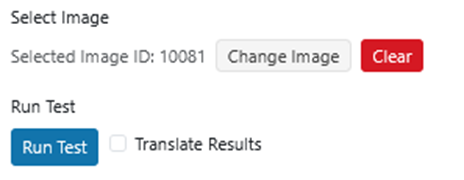
The AI testing modules can translate the results of a prompt written in English to other languages. This allows for the composition of a prompt to be written in English and perform the data extraction on images in other languages. Select the Translate Results to see the English version of the extracted data.
Section 10.2.3.3.5.2.4 Testing ResultsThe results are shown for each image. To see the results for a specific image, select the image from the image strip.
Section 10.2.3.5 AI Form Identification
AI Form Identification uses an AI large language model to automatically detect the form(s) present on an image. The results appear in a read-only Identified Forms widget on the Verification and Review pages. Operators do not identify the form — the model does. Operators review the identified forms in the Verification Module to see which forms produce the best Regex and AI Data Extraction results.
Form identification runs automatically as part of the Collection's workflow when the Identify Forms step is enabled in Section 10.2.4 Workflow, so results are already populated by the time an operator opens an image for review.
For each image, the Identified Forms widget lists:
- Form — the name of the identified form (for example, Registration Form).
- Revision — the form version, read from the image. A blank Revision means no version was present on the image.
- Domain — the form's domain, or type (for example, medical).
When no form is detected, the widget shows No identified forms for this image.
To display the widget, enable the Identified Forms tile in Configure Tiles. See Section 6.2 Tiles for tile configuration. The widget has no fixed location — operators can move, resize, and show or hide it.
Note: The form-identification prompt is managed by the system and is not exposed or editable by an administrator or operator. This is the first release of AI Form Identification. Additional capabilities are planned for future releases.
Deploy AI
AI
Image Quality Prompts, AI Data Extraction, and Redaction rules are deployed with a
taxonomy. Each must be added to a taxonomy to take effect. Once added to a
taxonomy, both become part of the Photo Pipeline.